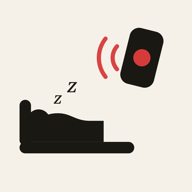
Yes: an alarm in Apple’s built-in Clock app still sounds when an iPhone is in Silent mode. On Android, check the alarm volume, selected sound and Do Not Disturb settings rather than relying on the ringer setting alone. For a third-party alarm or reminder app, test its own behavior on your phone.
Will my iPhone alarm ring in Silent mode?
Apple says the Clock alarm sound is unaffected by Silent mode, the Ring/Silent switch or Do Not Disturb. If an alarm is quiet, check the Ringtone and Alerts volume in Sounds & Haptics and make sure the alarm has a sound selected rather than None. Those instructions describe Apple Clock; another app may have different permissions and delivery requirements.
Will my Android alarm ring on silent?
Do not use the ringer volume as your only check. Inspect the alarm’s own volume and sound, then review whether Do Not Disturb permits alarms. Google’s Clock troubleshooting guide explicitly lists muted alarm sounds, low alarm volume and Do Not Disturb as possible causes of a missed alarm. Settings can vary by phone manufacturer.
What is the difference between silent mode and Do Not Disturb?
Silent mode changes how ordinary calls and alerts sound. Do Not Disturb and Focus govern which interruptions are allowed. Alarm volume and the sound chosen for an individual alarm are additional controls. A phone can be silent for calls and still sound an alarm; it can also have an alarm configured so quietly that you do not hear it.
A quick test before the next school morning
- Set a test alarm a few minutes ahead while you are awake.
- Use the same silent, Focus or Do Not Disturb settings that will be active overnight.
- Check the chosen sound and alarm volume, then lock the screen.
- Listen for the alarm and verify how to stop it.
- For a remote app, send the test from the other phone as well, and verify the response there.
A useful test follows the real routine: the same receiving phone, the same overnight settings and the same way of starting the alarm. Repeat the check after major system updates or permission changes. Keep the phone charged and use a backup for a morning you cannot afford to miss.
How this applies to WakeKids
WakeKids lets a parent set or send a wake-up on a paired child phone and see when the wake screen is acknowledged. The Android implementation uses the alarm audio stream. The iPhone implementation includes system alarm support on supported versions. Follow the permission prompts in the installed app and test your own devices instead of assuming that the behavior of Apple Clock applies to every remote request.
An already scheduled local alarm and a new remote request have different delivery requirements. A newly sent wake-up needs a working delivery path; power, connectivity and device settings still matter. A wake-screen acknowledgement confirms app interaction, not that a child is awake.
If a WakeKids alarm does not arrive, use the alarm troubleshooting checklist. If your family uses different phone brands, read remote alarms for iPhone and Android. To try a parent-managed wake-up, download WakeKids and test it together.
Try a wake-up together
Install WakeKids on both phones, pair them and test a wake-up before the next school morning.