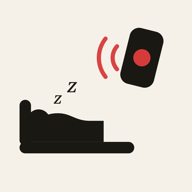
Families using both iPhone and Android can use a paired remote-alarm app such as WakeKids, which is available on both platforms. Install the app on both phones, use parent and child roles, pair them and test a wake-up. You do not need to share an Apple or Google account password to pair WakeKids.
Start with the role of each phone
The parent phone creates or sends the wake request. The child phone receives it and shows the wake screen. The operating system on the receiving phone determines which permissions and alarm settings matter. Swapping the roles of the two phones changes what you need to test.
Pair the phones together
- Install WakeKids from the App Store or Google Play on each supported device.
- On the parent phone, sign in, verify the account email and complete the parent setup.
- On the child phone, select the child role and display its pairing code.
- Use the parent app to scan the QR code or enter the pairing code, review the child-data notice and confirm your authority to connect the device.
- Complete the permissions requested on the child phone, then send a test wake-up.
Use the pairing guide if this is your first setup. A code shown by the child phone is for pairing; it should not be posted publicly or sent to anyone outside the intended family setup.
If the child phone is an iPhone
Follow the alarm and notification permission prompts shown by the installed WakeKids version. iOS alarm behavior depends on the supported system version and authorization. Test a locked screen, the overnight Focus configuration and the actual alarm sound. A successful call or ordinary notification does not establish that the alarm is configured correctly.
If the child phone is Android
Check the app’s notification and alarm permissions and the phone’s alarm volume. Review Do Not Disturb and battery restrictions on that particular phone; manufacturers use different settings. Google documents that Android Do Not Disturb modes can change which interruptions are allowed. The exact menu on a Samsung phone may differ from a Pixel.
If the phone receives an alarm only when the app is open, work through battery settings that can block alarms. Do not assume that silent mode, Do Not Disturb and battery saving are the same setting.
Verify the complete round trip
- Send a wake-up from the parent phone while the child phone is locked.
- Check that the child phone presents and sounds the alarm.
- Acknowledge the wake screen and check the parent app for its response.
- Test the optional no-response behavior when convenient, with both people aware of the test.
- Repeat after important permission changes, operating-system updates or replacing a phone.
An acknowledgement confirms an interaction with the app. It is not a guarantee that your child is awake. A newly sent remote request also needs a working delivery path; keep a separate alarm and a backup routine.
For the everyday workflow, read setting an alarm on another phone. To try it with your family’s devices, download WakeKids and complete the setup test before the next school morning.
Try a wake-up together
Install WakeKids on both phones, pair them and test a wake-up before the next school morning.