Using different phone brands? Read remote alarms for iPhone and Android families. For choosing a method, compare a remote alarm with a phone call.
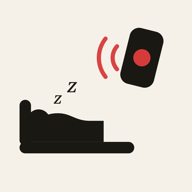
It sounds like it should be simple: you want an alarm to ring on your child’s phone tomorrow at 6:45, and you want to set it from yours. The built-in clock apps on iPhone and Android cannot do this, because an alarm lives on the phone it was created on. Here are the options that do work, and what each one is good for.
What the built-in tools can and can’t do
- Clock app (iPhone and Android): alarms ring only on the phone they were set on. There is no way to create one on another person’s phone.
- Screen Time (iPhone) and Family Link (Android): they manage screen time and apps, but neither includes a way to set an alarm on a child’s phone.
- Shared calendars and reminders: a reminder is easy to miss, and it does not ring like an alarm, especially on silent.
Option 1: Set it together the night before
Free, and it works on any phone: agree on the time and watch them set it. The catch is the morning itself. The phone that rings is also the phone with the stop button, and you will not know whether it was switched off half-asleep.
Option 2: A smart speaker in their room
If your household has a smart speaker, its companion app may let you set an alarm or a routine on it from your phone. It does not depend on your child’s phone, but it rings in the room rather than on the phone they keep with them, and you will not know whether they actually got up.
Option 3: Call or message them
A phone call is the oldest remote alarm, and it often fails in the most common situation: a phone on silent or Do Not Disturb, which is how many teenagers sleep.
Option 4: A remote alarm app
Remote alarm apps are built for exactly this. With WakeKids you install the app on both phones and pair them once with a short code. From then on you set alarms from your own phone: a one-off wake-up, or with WakeKids Plus a weekly school-day schedule. The alarm rings on your child’s phone as a full-screen wake-up, even when it is on silent. Your child holds a button for two seconds to stop it, and you get a confirmation on your phone, or an alert if there is no response.
It works across iPhone and Android in any combination (a child’s iPhone needs iOS 26 or later), and it is free to start with one child. See how pairing works for the setup.
Before you install anything on a child’s phone
Any app that reaches your child’s phone should collect as little as possible. Check what it stores, whether it tracks location and whether it shows ads. The privacy checklist for kids’ alarm apps covers what to look for.
Which option fits
- You are home in the morning: setting the alarm together, plus a knock on the door, is often enough.
- There is a speaker in their room that you control: a speaker alarm works, as long as you do not need to know that they got up.
- You leave before they do, or they sleep with the phone on silent: a remote alarm app is the option that rings on their phone and tells you the alarm was acknowledged.
Try a wake-up together
Install WakeKids on both phones, pair them and test a wake-up before the next school morning.